How to Create a Viral KOL Video Using Seedance 2.0 on TopView.ai
.png)
Introduction
In the era of short-form content, having a charismatic KOL (Key Opinion Leader) or AI Avatar present your brand can skyrocket engagement. With the release of the Seedance 2.0 model on TopView.ai, creating hyper-realistic, expressive, and dynamic AI spokesperson videos is easier than ever. You no longer need expensive studio setups, actors, or cameras.
Here is how you can generate professional KOL videos in just a few simple steps.
Step 1: Access TopView.ai and Log In
-
Head over to TopView.ai using your browser. (If you have an affiliate or referral link, use it to sign up for potential bonuses).
-
Click on the Sign Up or Log In button at the top right corner.
-
You can quickly register using your Google account or email address.
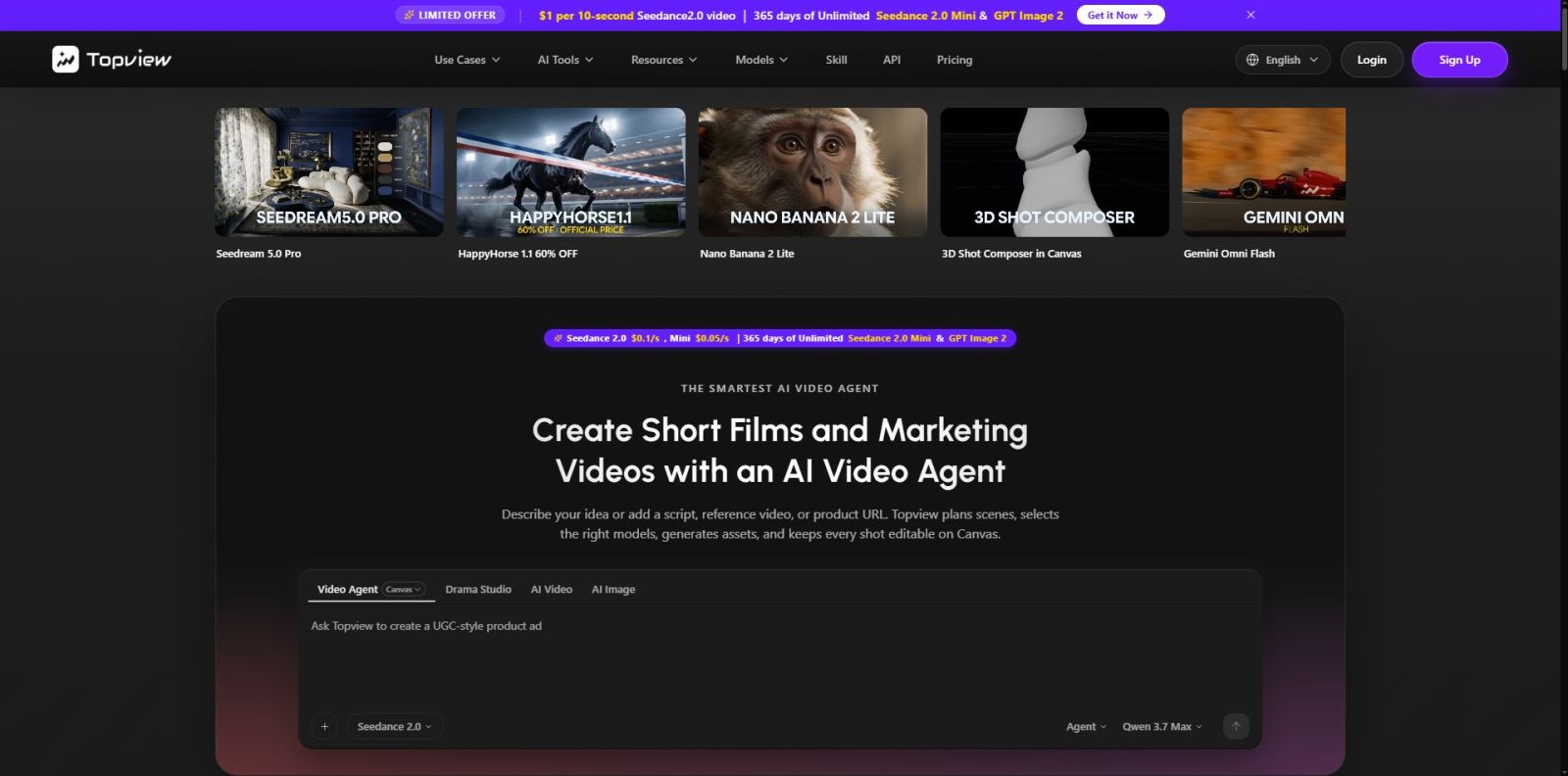
Step 2: Navigate to the AI Avatar / KOL Studio
-
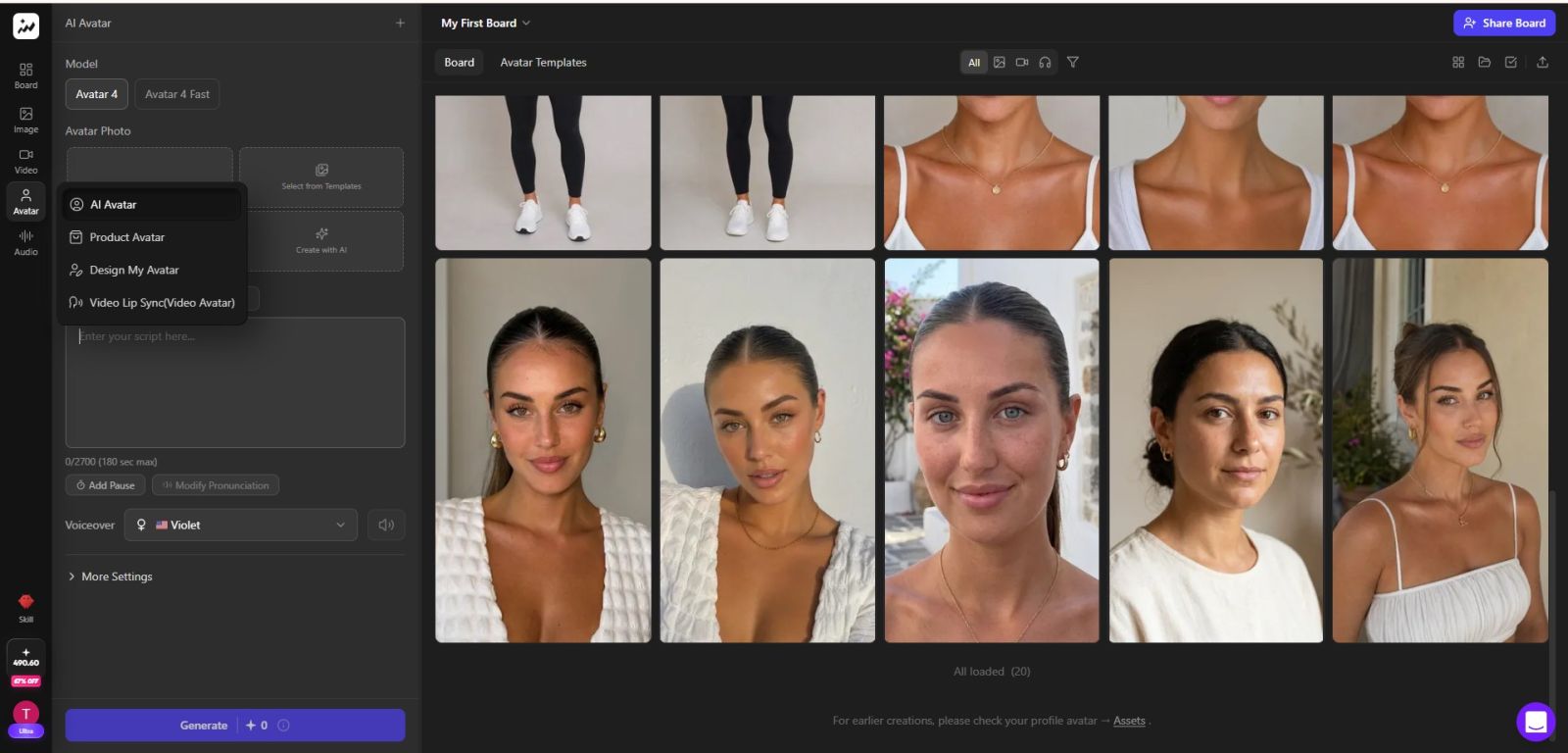
Once logged into your dashboard, look for the "AI Avatar" or "Digital Human" tool in the main menu or project workspace.
-
Click on "Create New Video" to start a blank project.
Step 3: Select the "Seedance 2.0" Model
-
In the Avatar library, you will see a variety of AI models. Locate the filter or search bar and select the Seedance 2.0 models.
-
Why Seedance 2.0? This specific model provides vastly improved lip-syncing, natural micro-expressions, and smoother body gestures compared to older versions, making your KOL look incredibly human-like.
-
Browse through the available avatars (varying in gender, ethnicity, and professional attire) and click on the one that best fits your brand's aesthetic.
Step 4: Input Your Script and Choose a Voice
-
On the right-side panel, you will find a text box. Paste your marketing script, educational content, or promotional message here.
-
Select an AI Voice: TopView.ai offers a massive library of high-quality, localized AI voices. Choose a language, accent, and tone (e.g., energetic, professional, casual) that matches your chosen KOL.
-
Pro Tip: Use punctuation (commas, periods) to add natural pauses to the speech.
Step 5: Customize Visuals and Backgrounds
-
Background: You can keep the background transparent, choose a solid color, or upload your own custom image/video background (like a studio set, an office, or your website).
-
Branding: Add your logo, text overlays, or B-roll footage over the timeline to make the video look like a professionally edited social media post.
-
Adjust the size and positioning of the Seedance 2.0 Avatar on the screen (e.g., center for YouTube, or lower-center for TikTok/Reels).
Step 6: Preview, Generate, and Export
-
Click the "Preview" or "Listen" button to hear the audio and verify the script pacing before generating the final video.
-
Once you are satisfied with the setup, hit the "Generate" or "Export" button.
-
Wait a few minutes for TopView.ai's cloud servers to render the Seedance 2.0 avatar.
-
Download the final MP4 file to your device, and it is ready to be published on TikTok, Instagram, YouTube, or your website!
Ready to start? Head over to TopView.ai today and let the Seedance 2.0 model revolutionize your content creation workflow!
Popular Blog

.png)